HIPAA Compliance Checklist for 2025

Salesforce Setup shows every user and every permission set, one record at a time.
It won't tell you which of those users have already left in your HRIS, or which connected apps still hold live tokens into your customer data.
That second blind spot is how attackers reached hundreds of Salesforce orgs in 2025 without logging in as a single employee.
Most user access reviews for Salesforce cover people and stop there.
A complete review runs two tracks: human users checked against HR and SSO, and non-human access checked for ownership and scope.
This guide walks IT teams through both, with the Setup paths and a reviewer decision table you can reuse.
What User Access Reviews for Salesforce Need to Cover
They need to cover four layers of access, and most reviews only check the first one.
A user's real access is the sum of all four layers, so user access reviews for Salesforce that stop at the profile name miss most of the risk. A full Salesforce permission audit checks all four.
If you want the general framework first, our user access review process guide covers it. This guide stays inside Salesforce.
How to Run the Human Side of User Access Reviews for Salesforce
Run it in five steps, starting with a clean user list and ending with proof of every removal.
Here's the sequence:
Step 1: Export Active Users and Match Them Against HRIS and SSO
Start with an export of every active user, then compare it to your HR system and identity provider.
- Pull the list: Setup → Users, filtered to active users, exported with profile, role, license and last login.
- Match to HRIS: any active Salesforce user with a terminated HR record is an immediate revoke.
- Match to SSO: users with no SSO account may still sign in with a Salesforce password if SSO isn't enforced for them.
- Tag service accounts: integration users move to the connected app track, so label them now.
This one match catches more risk in user access reviews for Salesforce than any permission check that follows.
Step 2: Flag Org-Wide Permissions Before Anything Else
Review the permissions that open the whole org first, because one wrong grant there outweighs fifty routine ones.
- Modify All Data: edit or delete any record, regardless of sharing rules.
- View All Data: read every record in the org.
- Export Reports: download report data to a file.
- Manage Users: create users and assign permissions.
- API Enabled: work with org data through outside tools and scripts.
Use the View Summary button on a user or permission set to see these combined, instead of opening each set one by one. That single view turns a Salesforce permission audit from hours into minutes.
Admin lists only grow if nobody trims them. Our privileged user access review guide shows how to cut them back without breaking operations.
Step 3: Translate Permissions Into Decisions a Manager Can Make
Give reviewers a plain-language line for every risky permission, or they will approve everything they see.
Send each manager the user and the plain-language line, with one question: does this person still need to do this?
That one change is what makes user access reviews for Salesforce produce real decisions instead of rubber stamps.
Step 4: Route Each User to the Reviewer Who Knows Their Work
Route by business owner first, with the Salesforce admin as a second check for privileged users.
- Line managers confirm the person still needs Salesforce at all.
- Sales ops or RevOps owners confirm permission sets match the current role.
- The Salesforce admin signs off on anyone holding org-wide permissions.
- IT sets the due date and escalation path, so reviews close inside the audit window.
Step 5: Deactivate Rejected Users and Log the Change
Deactivate rejected users, because freezing only blocks the login.
- Freezing is temporary: a frozen user can't log in but still uses a Salesforce license (Okta Workflows docs).
- Deactivation frees the seat: the license can go to another user right away.
- Check dependencies first: reassign records, approval steps and any integration that authenticates as that user.
- Export again: a post-remediation user list gives you the before-and-after for your evidence folder.

How to Review Connected Apps and Integration Users in Salesforce
Review them as a separate track, with a named owner and a scope check for every app.
In August 2025, attackers used OAuth tokens tied to the Salesloft Drift integration to pull data from Salesforce customer instances (Google Threat Intelligence Group).
The campaign reached over 700 organizations, and Drift integrations often carried more API permission than they needed (Cloud Security Alliance). The tokens were valid, so they bypassed MFA and SSO entirely (Security Boulevard).
A people-only review would have marked every one of those organizations as clean.
Here's how to review Salesforce connected apps:
- Open the inventory: Setup → Connected Apps OAuth Usage lists the apps your users have authorized, installed or not (Salesforce Help).
- Assign an owner: every app needs a named person who can explain why it exists.
- Check the scopes: full access on an app that only syncs one object is a candidate for a tighter scope.
- Check the run-as user: integration users on a System Administrator profile go straight to remediation.
- Check last use: block apps nobody has used since the last review.
- Rotate after offboarding: when the person who set up an integration leaves, rotate its credentials.
Agentforce agents and AI tools connected through OAuth belong in this track too. This breakdown of what AI tools can reach shows how fast those grants spread across a CRM.
Salesforce is one app among dozens with the same problem. Our guide to non-human identity security covers how to find and own service accounts across the rest of your stack.
How Often to Run User Access Reviews for Salesforce
Run them quarterly for privileged users and connected apps, and every six months for everyone else.
SOX and SOC 2 auditors look for a defined frequency that you actually follow, so write the cadence into your access policy.
Quarterly cycles still leave gaps between reviews. Here's how teams close them with continuous access compliance.
What Evidence Auditors Expect From a Salesforce Access Review
Auditors expect proof that the right person made every decision and that every removal actually happened.
Keep these five items for each Salesforce access review:
- A timestamped export of active users with profiles and permission sets at review start
- Reviewer name, decision and date for each user
- A post-remediation export showing deactivations
- Setup Audit Trail entries for every permission change
- A connected app log with the owner and decision for each app
Your auditor will test this folder against the scope you defined, so user access reviews for Salesforce need the same scope every cycle.
A reusable user access review checklist keeps the scope consistent.
How CloudEagle.ai Runs User Access Reviews for Salesforce
The manual process works, but it means spreadsheet exports and reviewer follow-ups every quarter. CloudEagle.ai's IGA Report found that 95% of organizations still run app access reviews manually.
It also hands managers long lists they can't judge, which is where rubber-stamping starts. CloudEagle.ai puts both tracks of user access reviews for Salesforce in one place, so IT runs the review instead of assembling it.
Here's how a Salesforce review runs in CloudEagle.ai, from connection to cleanup:
Step 1: Pull Salesforce Users In With Role, License and Identity Context
Matching a Salesforce export to HR and SSO data by hand takes days, and leavers slip through between cycles.
How CloudEagle.ai solves it:
- The Salesforce direct integration pulls every user into the review panel with their role and license type.
- Each user sits beside their SSO and HRIS status, so a leaver shows up as a leaver.
- Salesforce runs in the same review campaign as your other apps, and reviewers get an email when they're assigned.
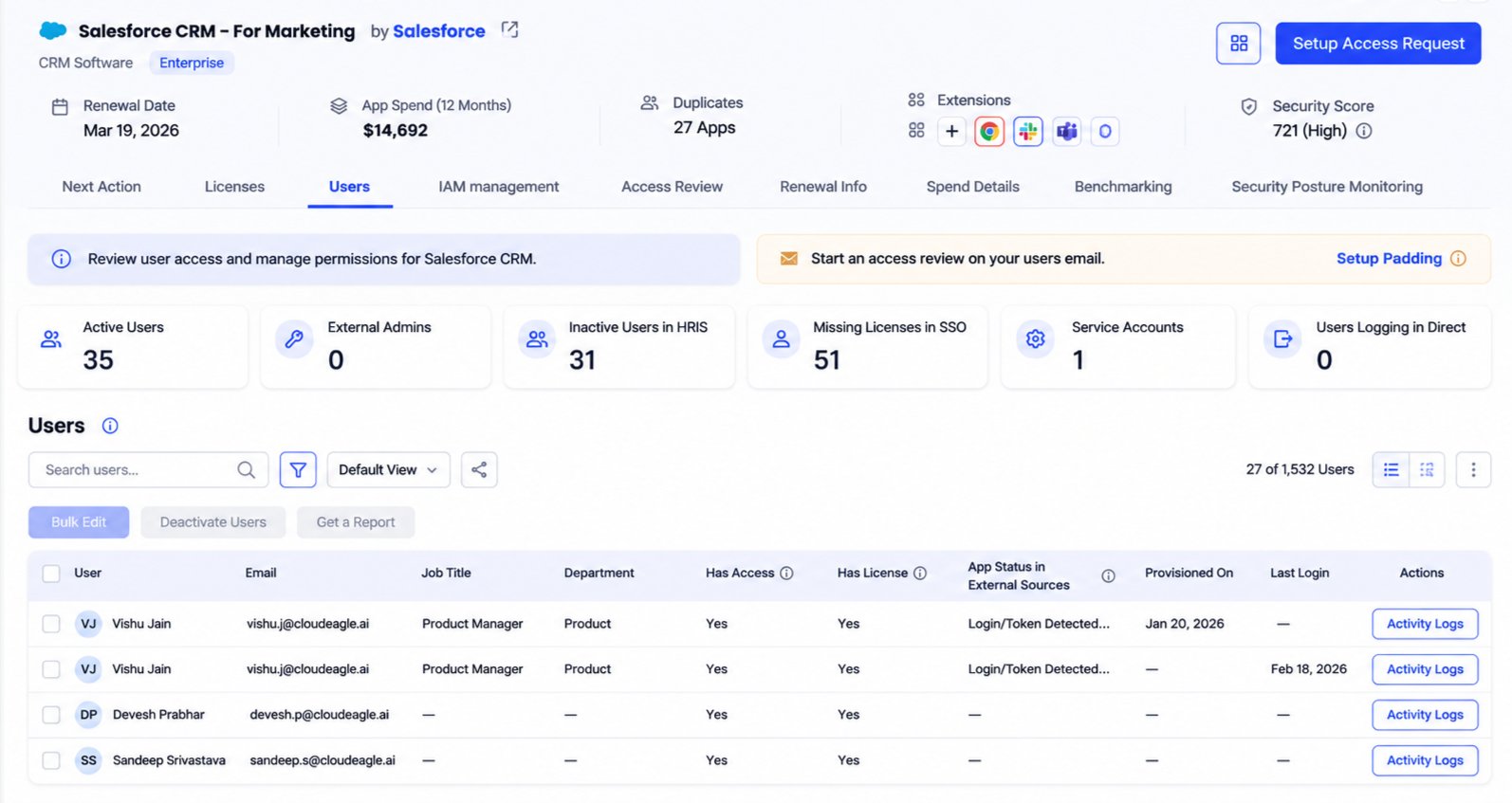
IT starts every cycle with a complete Salesforce user list, already matched to HR and SSO.
Step 2: Filter to Risky Users and Cut Rubber-Stamping
Reviewers facing hundreds of pending Salesforce users approve in bulk, and the risky few get approved along with everyone else.
How CloudEagle.ai solves it:
- Filters isolate admin users, users inactive in SSO or HRIS, and users who haven't logged in for 90 days.
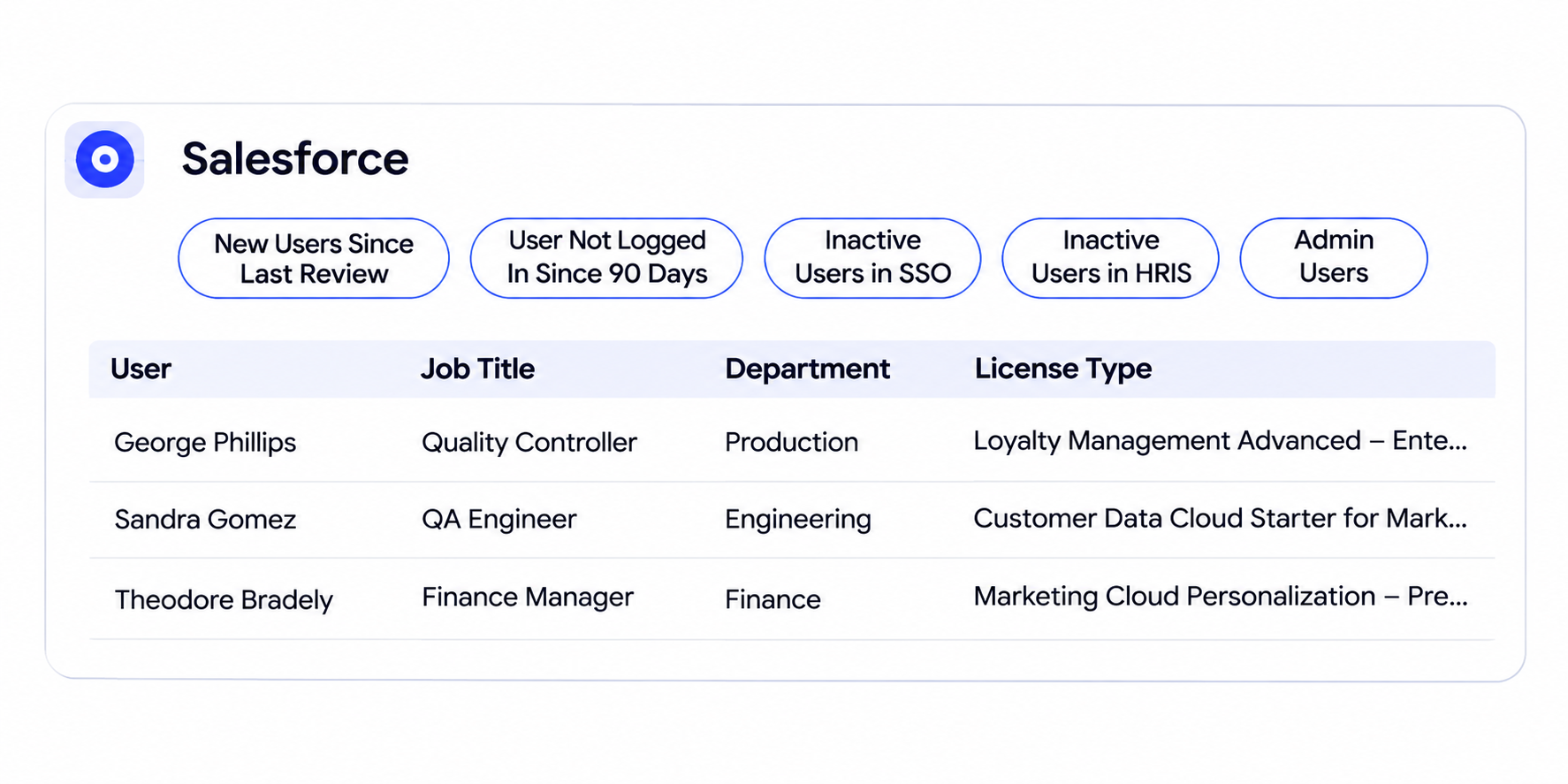
- A separate filter shows new users added since the last review, so fresh grants get a real look.
- AI flags high-risk users and ex-employees, so reviewers know where to spend their attention.
Reviewers make fewer decisions, and each one is about a user who actually needs judgment.
Step 3: Deprovision Rejected Users and Generate the Audit Trail
Most reviews stall after the decision, because someone still has to remove the access and prove it happened.
How CloudEagle.ai solves it:
- A rejection triggers a deprovisioning workflow, with evidence attached automatically and logged in Jira or your ITSM tool.
- PDF reports list each user's review decision, license type and provisioning status for internal and external auditors.
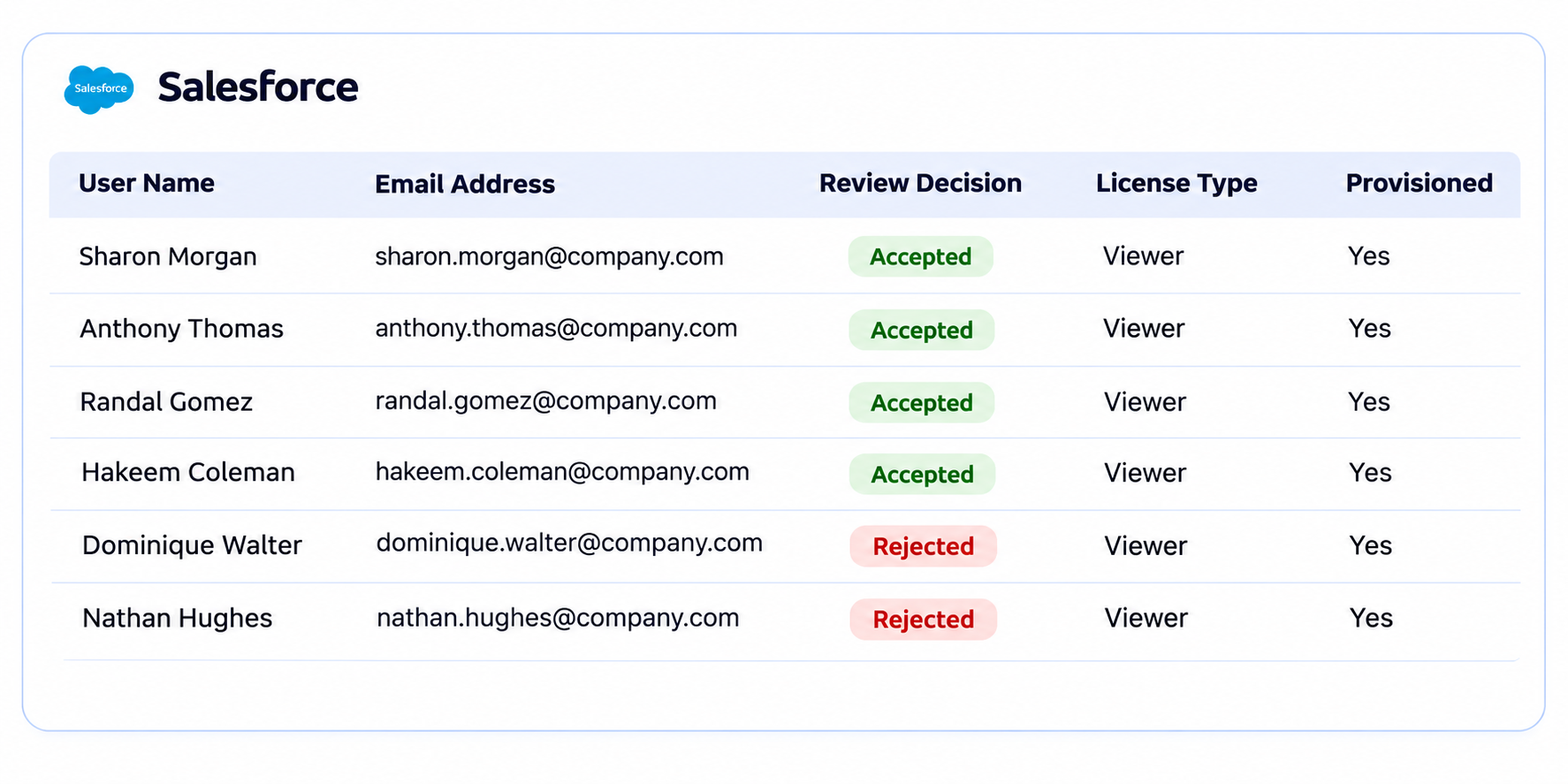
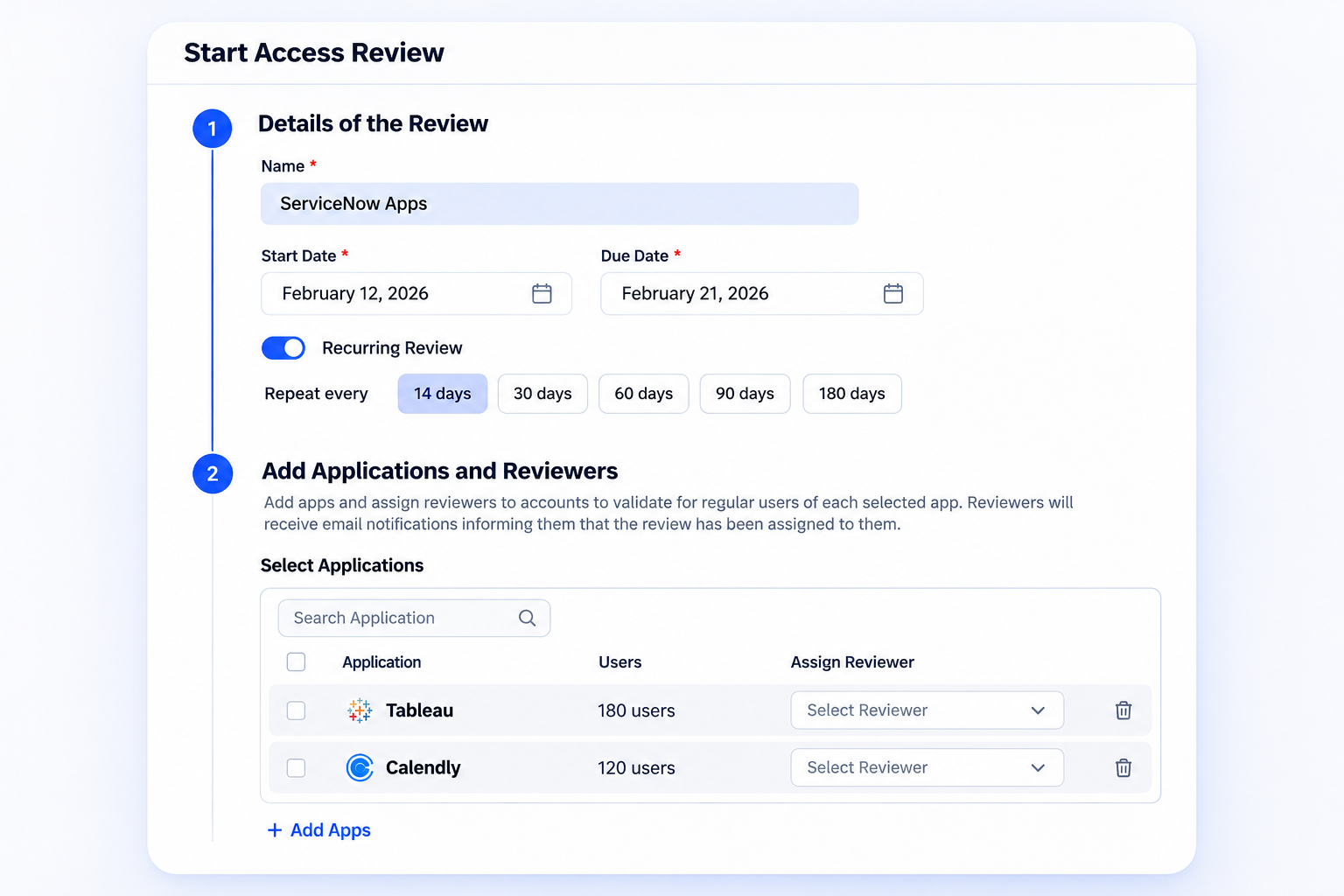
- Recurring reviews repeat every 30, 60, 90, 180, or 360 days, so the next cycle starts without being rebuilt.
Every decision closes with a recorded removal, and the evidence is ready before the auditor asks.
ICEYE ran this exact loop. Rejected access triggered deprovisioning straight away, reviews that used to take months closed in days, and the IT team cut access review effort by 90% while saving over 1,500 hours a year. Michal Lipinski, Director of IT and Security, says,
“We went from spreadsheet-driven access reviews that took months to a fully automated, structured process. CloudEagle gave us complete visibility into users, roles, and permissions, while eliminating delays and reducing risk.”
~ Michal Lipinski, Director of IT & Security, ICEYE
Step 4: Reclaim the Salesforce Licenses the Review Frees Up
Leavers who sit frozen or inactive keep using paid Salesforce seats long after they stop working there.
How CloudEagle.ai solves it:
- Reviews start from license management, so every Salesforce user ties back to a seat.
- Once a user is deprovisioned, license counts update in the same platform.
- The review and the license data share one source, so the asset inventory stays accurate between cycles.
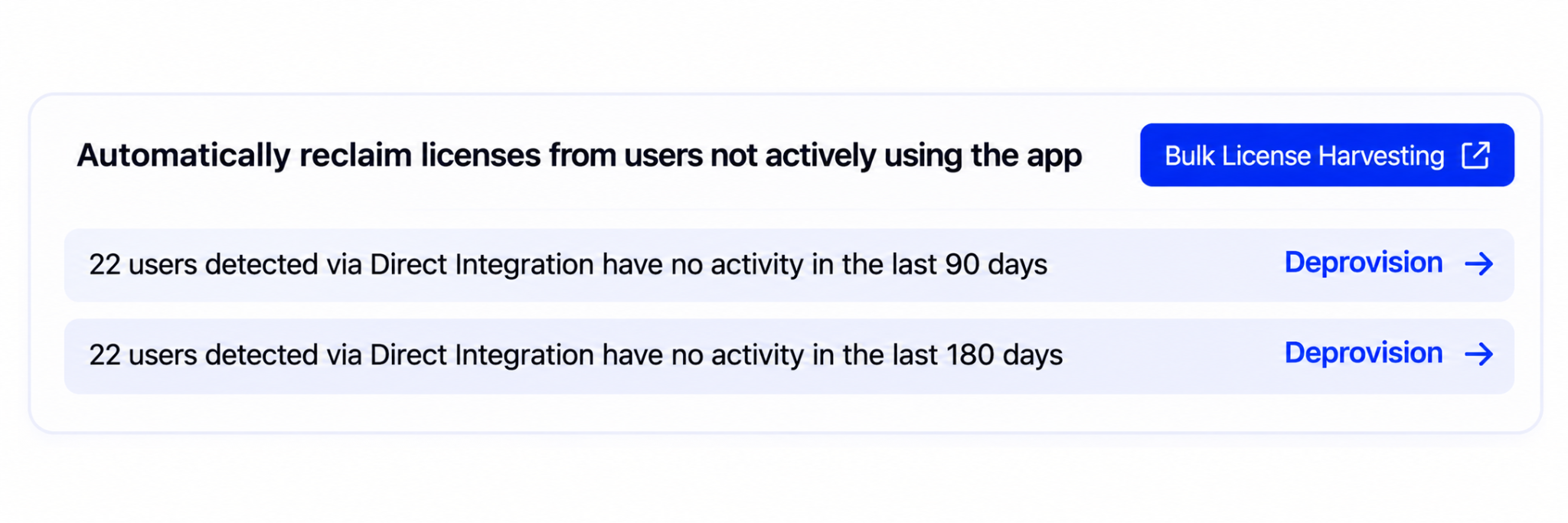
Each review cycle doubles as a Salesforce license cleanup.
Step 5: Run the Same Review for Connected Apps and Agents
Human users are only half the Salesforce review. Integration users and agents rarely have an owner, so nobody puts them in a review.
How CloudEagle.ai solves it:
- NHI Management has a Salesforce view that lists the agents and non-human identities inside the org.
- Identities with no owner, no activity in 90+ days or more access than they use are flagged first.
- IT can assign an owner, rotate a key or revoke access from one console, with every action logged.
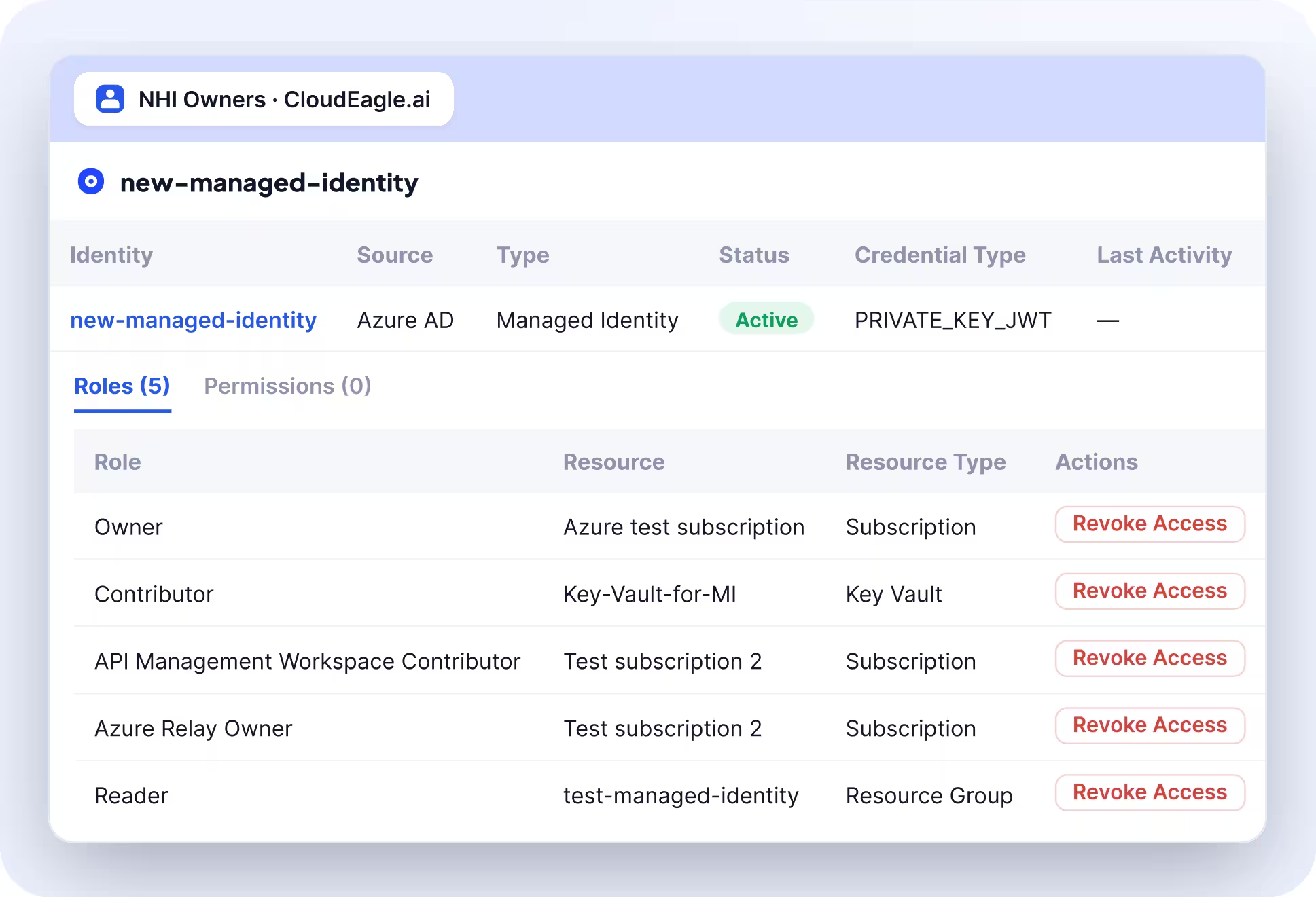
The connected app track ends with the same owner-and-decision trail as the human track. Salesforce connected apps and AI tools also show their permission scope, including whether they can write or delete data.
What a Complete Salesforce User Access Review Looks Like
A complete Salesforce user access review closes both tracks in the same cycle: every human user gets a decision, and every connected app gets an owner and a current scope. It ends with removals you can prove, so the next audit starts from evidence instead of exports.
Before you call a cycle done, check these four things:
- Every active user is matched against HRIS and SSO
- Org-wide data permissions sit with a short list of named admins
- Each connected app and integration user has an owner and a scope that fits its job
- Rejected users are deactivated, with before-and-after exports in the evidence folder
Run that loop on a fixed cadence and user access reviews for Salesforce become routine work for IT. The org stays clean between audits, and paid seats go back to the pool as people leave.
FAQs
1. How do you perform a user access review?
Pull the user list and flag risky permissions. Have each owner approve or reject access, then remove what's rejected and keep the evidence.
2. Why are user access reviews important?
They catch leavers and excess permissions before attackers or auditors do, and they're core evidence for SOX and SOC 2 audits.
3. How often should you run user access reviews for Salesforce?
Quarterly for admins and connected apps, every six months for standard users, plus a check whenever someone changes roles or leaves.
4. Which Salesforce permissions are highest risk?
Modify All Data and View All Data top the list, followed by Manage Users and API Enabled, since each reaches far beyond one user's records.
5. Does freezing a Salesforce user free up the license?
A frozen user can't log in but still holds the license. Deactivate the user to release the seat for someone else.
6. Do connected apps belong in user access reviews for Salesforce?
Yes. Connected apps hold OAuth tokens with their own scopes, so each one needs an owner and a review alongside human users.
User access reviews for Salesforce are complete only when both tracks close with evidence.
See how CloudEagle.ai runs both in one review: book a demo.
Close Both Review Tracks With Evidence