HIPAA Compliance Checklist for 2025

A new sales rep starts Monday. The ticket says, "Give her what Priya has," so IT copies Priya's access across 14 apps.
Priya has been here three years. Her access includes a Salesforce admin role from an old migration project and a Tableau seat she last opened in March.
That copy-paste habit is how most baselines bloat. Birthright access replaces it with a defined set of apps every person in a role gets automatically on day one, through birthright provisioning tied to HR data.
This guide shows IT how to set that bundle by role and keep it lean.
Birthright Access in Security: Where Day-One Defaults Become Standing Risk
Birthright access becomes a standing risk when the bundle is built once and copied forward. Each new hire inherits the last person's access, and nobody subtracts anything, so the default grows with every hire.
Three habits drive most of that growth:
- Copied access: "Give them what Priya has" hands a new hire every forgotten grant Priya picked up.
- Admin rights folded into defaults: Making GitHub admin automatic for managers turns a decision about excessive privileged access into one nobody signed off on.
- Mover drift: A promotion adds the new role's apps while the old ones stay. That's how privilege creep builds quietly over time.
The pile-up is easy to measure once you look. CloudEagle.ai's 2025 IGA Report surveyed 1,000 CIOs and CISOs and found 1 in 2 employees hold more access than their role needs, the leftover of exactly these habits.

The Three Tests Every App Must Pass Before It Joins the Baseline
An app belongs in a role's birthright access bundle only when it passes all three tests below. Miss one and it moves to the request path.
- Usage test: 80% or more of the role opens it. Count logins, because assignments overstate use: Oso's 2026 permissions research found 96% of granted permissions went unused over 90 days. A tool assigned to every marketer but opened by 40% of them fails.
- Sensitivity test: No admin rights or regulated data. Read access to the CRM passes. Delete rights on customer records fail, however common they are in the role.
- Cost test: The seat holds up for every hire. Take a $30-a-month seat and 100 hires a year: that's $36,000 annually, and if a third of those hires never open it, IT has $12,000 to explain to Finance.
Most baseline designs skip the cost test. It's the one that protects IT at renewal, when Finance asks why 40 Figma seats show zero activity.
Together, the tests keep every app in a role's baseline access list tied to least privilege from the first login.
Birthright Access Examples: What Each Role Gets on Day One and What Waits for Approval
Here's how the three tests sort birthright access across a typical stack. Universal apps go to everyone, and role-based access goes only to roles that clear the 80% bar.
The AI row matters most right now. AI seats are often bought in bulk by department, so keep them request-based until usage data says otherwise. Routing those requests through a self-service app catalog turns each one into a structured approval instead of a ticket.
Inside each app, the CRM is birthright and the CRM admin role is a request, which is how role-based access control is meant to tier permissions.
How to Build a Birthright Baseline Without Over-Provisioning
Start from usage data and schedule the cleanup before launch. Here's the sequence.
1. Pull 90 days of real usage by department
Before defining birthright access, find out who logs into what across SSO and non-SSO apps. Job titles show what people should use, while login data shows what they do use.
- Group users by department and function from the HRIS
- Rank each app by the share of the group that opened it in 90 days
- Flag apps outside SSO separately, since IdP reports usually miss them
2. Run every app through the three tests
Apps that pass all three become the role's birthright list. Apps that fail go to the path that matches the reason:
- Fails usage only: List it in the app catalog with auto-approval
- Fails sensitivity: Route it through manager or IT approval
- Fails cost: Keep it request-based and check usage before renewal
Record why each app failed, so the next "everyone needs this" request already has an answer.
Ready to automate day one? How CloudEagle.ai automates the joiner process picks up where this step ends, once your baseline list exists.
3. Put privileged access on its own path
Admin roles and production access stay out of birthright access, even when 90% of a role ends up with them. A separate path keeps least privilege intact without slowing anyone down:
- Auto-approve the grant by policy when a role change lands in the HRIS
- Log each grant as its own record tied to that person
- Set an expiry or review date so the access gets checked again
4. Map HRIS attributes so access follows movers
Use department and job title as primary triggers, with location and employment type as modifiers. Attribute-based rules handle edge cases like contractors and region-specific tools.
When an attribute changes, birthright access should follow the person. Automated mover workflows add the new role's bundle and pull the old one on the same day.
5. Check unopened birthright access at 30, 60, and 90 days
An app that sits unopened for 90 days signals the bundle is too wide. Run the check as a sequence:
- 30 days: Remind the user the app is available
- 60 days: Flag it to their manager
- 90 days: Reclaim the seat and mark the app for the quarterly baseline review
6. Re-certify the baseline every quarter
Review the bundle itself alongside individual users. Tools and teams change, and a list built in January drifts by June.
- Remove apps that dropped below 80% usage and add ones that climbed above it
- Fold the review into your automated access reviews so it runs on the same cycle
How CloudEagle.ai Helps IT Define Baseline Access by Role Without Over-Provisioning
CloudEagle.ai gives IT one platform to discover every SaaS and AI app and control who has access to it, with usage and spend data behind each decision. It works alongside the IdP you already run.
That matters here because the six steps above depend on usage data across every app and cleanup that runs without IT logging into each tool. Here's how CloudEagle.ai covers each stage of birthright provisioning.
Define the baseline from real usage
Most IT teams define birthright access from memory or the IdP's app list, which misses tools outside SSO. The bundle ends up built on guesses.
How CloudEagle.ai solves it:
- EagleIQ pulls usage, access permissions, and contract data into one view per department
- It identifies apps commonly used by 80% of a department and surfaces them as birthright candidates
- Usage covers SSO and non-SSO apps through 500+ integrations, so tools outside the IdP get counted
IT starts with a baseline backed by login data and a recorded reason for every app left out.
Grant the bundle on day one without a ticket per app
A defined list still needs someone to grant access in every tool, and apps outside the IdP get done by hand.
How CloudEagle.ai solves it:
- Onboarding triggers from the HRIS, so the bundle is provisioned when HR adds the new hire
- Approval policies assign Okta or Azure groups for apps behind the IdP
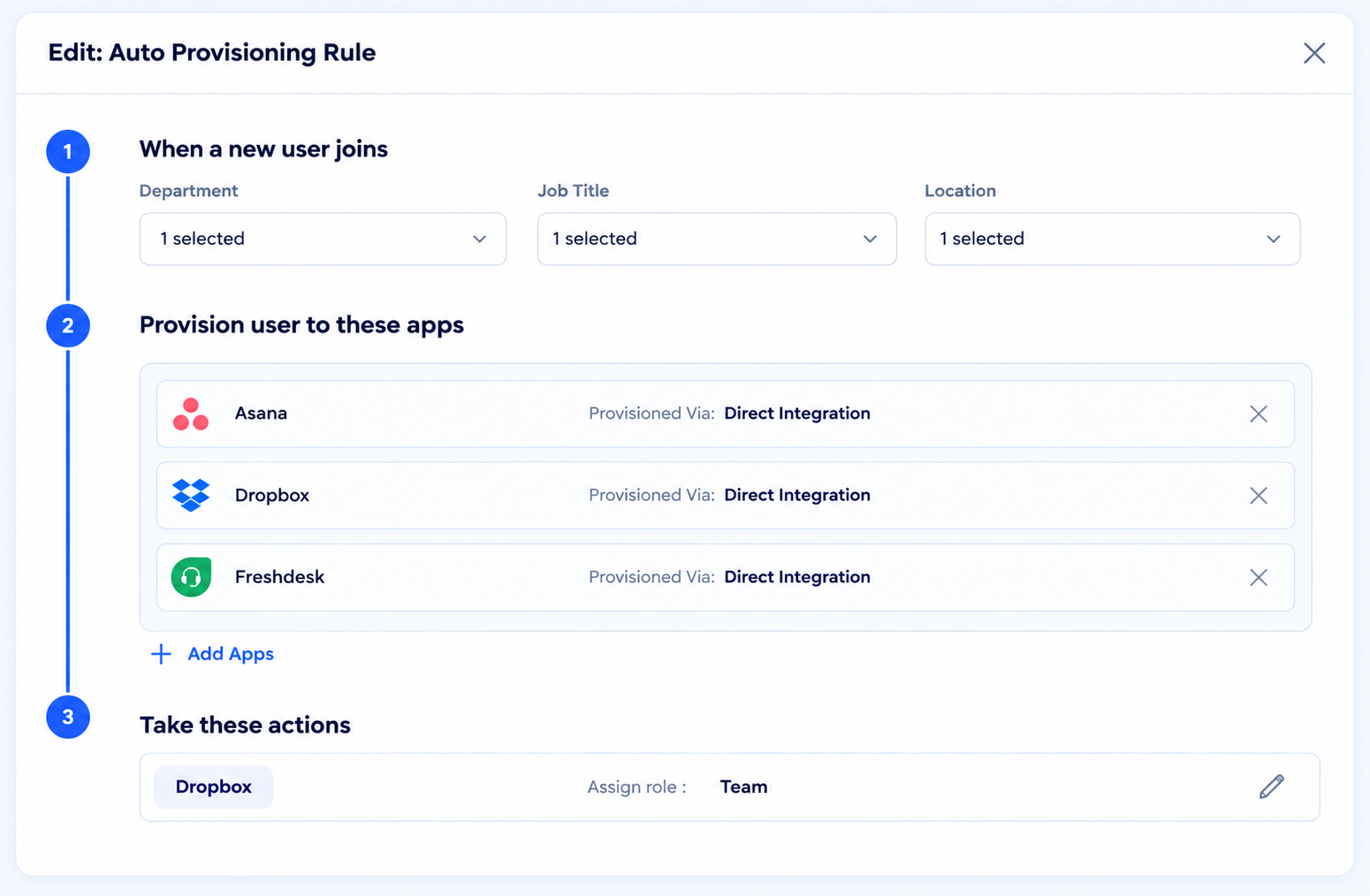
- Manual tasks are created automatically for apps without an integration, so nothing gets skipped
New hires work from their first login, and standard access stops generating tickets. Bloom & Wild's IT team runs onboarding this way after connecting CloudEagle.ai to their HR and SSO systems, which cut onboarding to minutes. Head of IT Sam Middleton described the change:
"Provisioning and deprovisioning users used to take hours, even days, and often led to delays and security risks. With CloudEagle.ai's automated workflows, we now ensure Day 1 access for new hires and immediate deprovisioning for departing employees, saving time and enhancing security ."
Route everything outside the baseline through a catalog
A lean baseline means requests for admin roles and AI seats still arrive. Granted over email, they turn into permanent access nobody tracks.
How CloudEagle.ai solves it:
- The self-service app catalog shows each employee only the apps approved for their role, through Slack, Teams, or the web
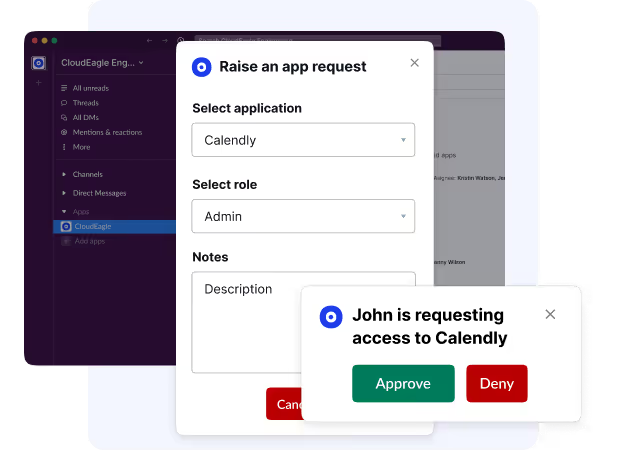
- Each request routes to the right approver based on role or department
- Time-based access sets an expiry on grants outside the baseline and revokes them automatically when it ends
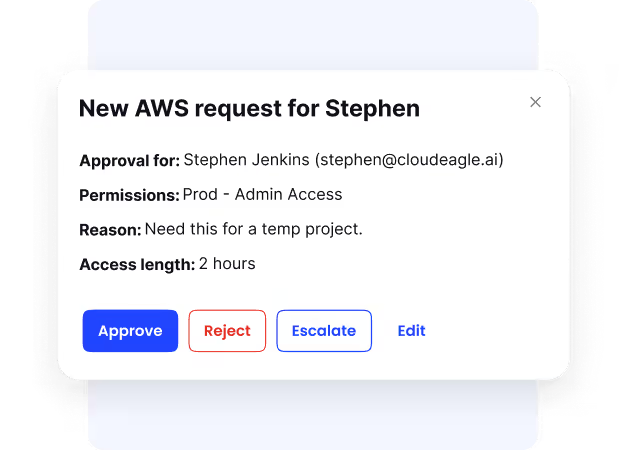
Exceptions get approved fast and expire on schedule, so they never harden into the default bundle.
Pull access when people move or leave
Role changes are where old access survives. The new role's apps get added on day one, while the old role's apps stay until an audit or a renewal surfaces them.
How CloudEagle.ai solves it:
- HRIS role changes trigger provisioning for the new role and removal of access it no longer needs, with license adjustments in the same workflow
- Deprovisioning runs directly through CloudEagle.ai for apps like Zoom, Slack, HubSpot, Workday, and DocuSign
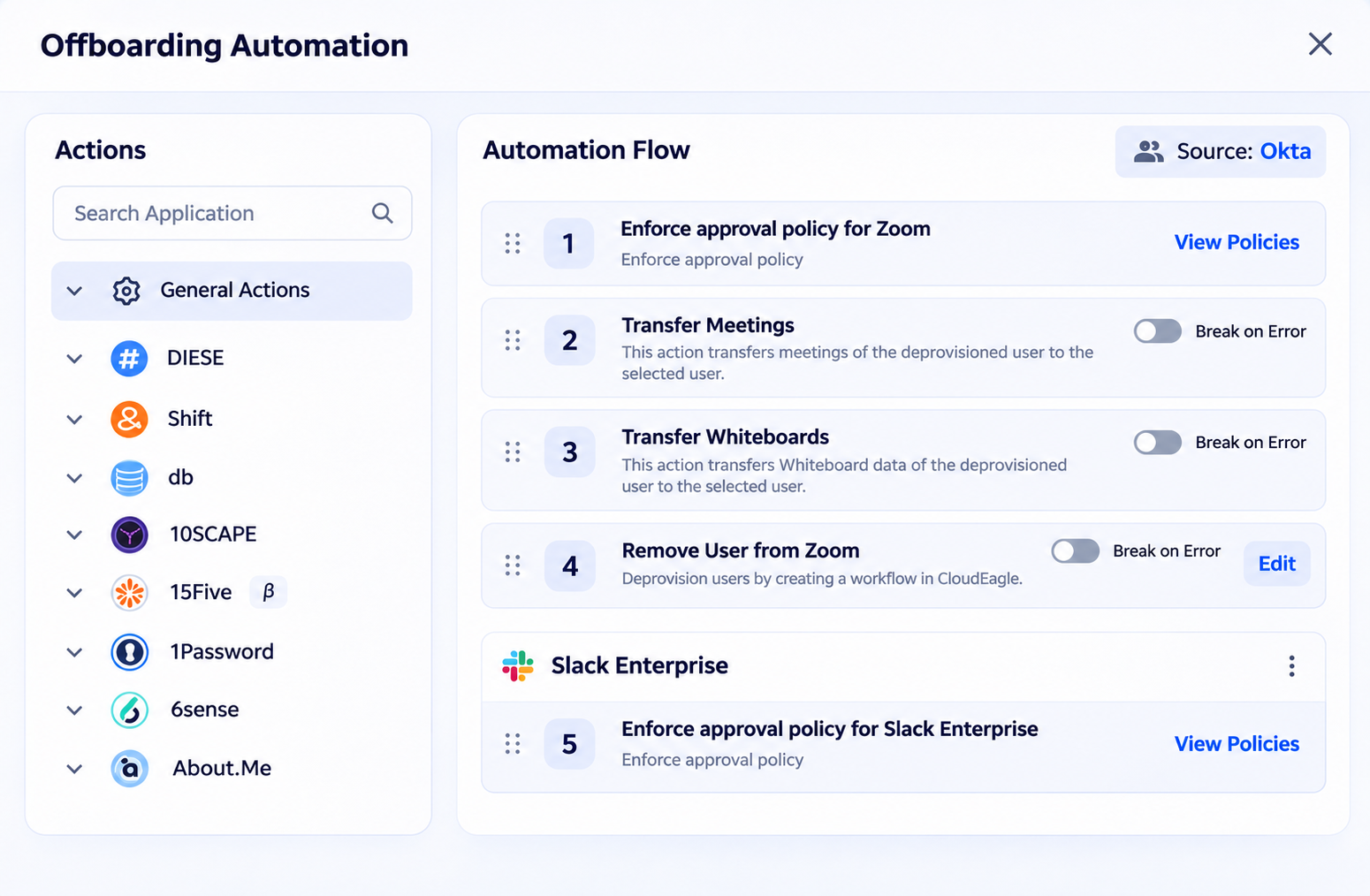
- Every grant and removal is logged from onboarding through offboarding, with time-stamped evidence for auditors
Each person holds only their current role's bundle, and IT can show exactly when old access was removed.
Reclaim unused seats and re-certify the bundle
Unopened birthright apps rarely surface before renewal, and quarterly reviews turn into rubber-stamping at scale.
How CloudEagle.ai solves it:
- License harvesting flags seats with no logins, notifies the user, and deprovisions the ones that stay unused
- IT can review the matched list before anything is removed, and every harvesting run is logged
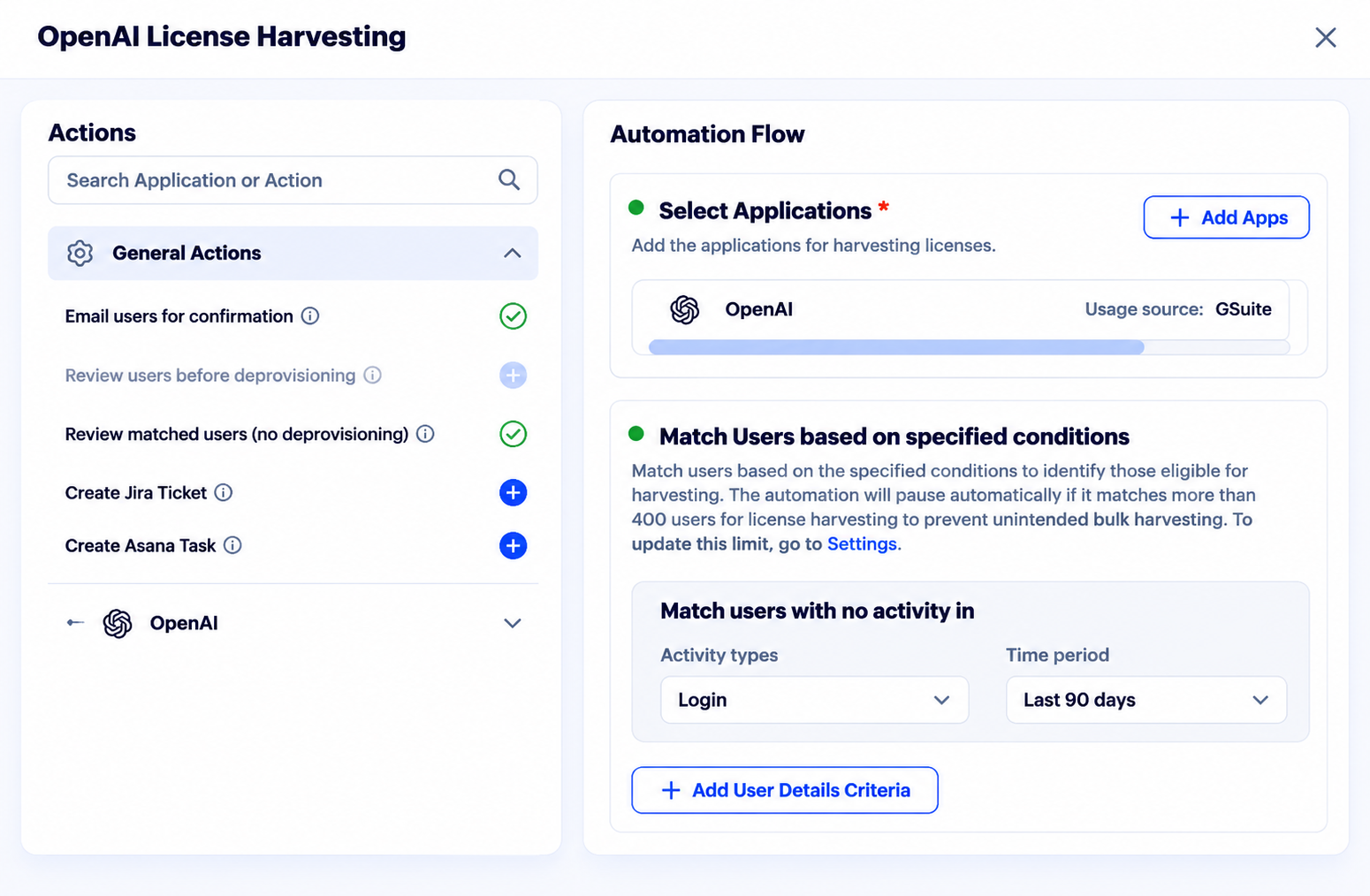
- Smarter access reviews flag risky users, so reviewers spend time on the lines that need a decision
Seats return to the pool before renewal, and each quarterly re-certification reflects who actually uses each tool.
Where to Start With Birthright Access
Go back to the sales rep starting Monday. With a defined baseline, her ticket never mentions Priya.
HR adds her as Sales, and she gets the Sales bundle before her first login, with the CRM at standard-user level. The Salesforce admin role stays with Priya, and the Tableau seat goes back to the pool.
That’s the shift birthright access makes. The role decides the default, and anything beyond it needs its own approval and its own record.
Start with one department. Pick the team hiring most this quarter and run its 90-day usage through the three tests.
One clean bundle gives you the template for every other role, and a number to show Finance at the next renewal.
Frequently Asked Questions
What does birthright access mean?
It's the default set of apps and permissions a person gets automatically on joining, based on role and department, with no request needed.
What is meant by privileged access?
Privileged access means elevated rights, like admin roles or production access, that can change systems or data. Keep it out of birthright bundles.
What is a birthright definition?
Generally, a right held from birth. In identity management, it's access granted the moment an identity is created from HR data.
What does access provisioning mean?
Access provisioning is granting accounts and permissions in each app. Birthright provisioning automates it for a role's default bundle.
Book a demo to see how CloudEagle.ai defines and maintains birthright access across your stack.
Day-One Access Without the Tickets