
.avif)
%201.svg)


HIPAA Compliance Checklist for 2025

Most teams assume their Figma setup is clean until a quarterly audit or surprise security review reveals something unexpected: dormant editors still consuming paid seats, external freelancers who were never removed, or entire projects quietly shared through public links.
And because Figma permissions live across users, teams, files, and links, tracking who has access to what becomes harder the deeper you look.
If you're trying to understand how to track user access reviews for Figma in a way that’s accurate, scalable, and audit-ready, you’re in the right place.
This article breaks down exactly how to review roles, permissions, sharing settings, external collaborators, usage activity, and automation options so you can keep Figma secure without slowing teams down.
TL;DR
- Figma access reviews help you prevent permission drift, remove outdated access, and protect design IP across teams, contractors, and external collaborators.
- You can track access through Figma’s Admin panel, user lists, sharing settings, and activity logs to see who has access to what and whether it’s still justified.
- Automated reviews, especially through SCIM provisioning and CloudEagle reduce manual effort, flag risky or inactive users, and keep permissions aligned with role changes.
- Common issues include external users retaining access, public file links, unnecessary editor seats, orphaned files, and outdated admin privileges.
- A quarterly user access review checklist brings structure to your access governance, helping teams validate users, permissions, sharing controls, seat usage, and audit evidence consistently.
1. Why Tracking Figma Access Reviews Matters?
Figma is one of the easiest tools for teams to collaborate in, but that ease comes with hidden risks. Designers invite freelancers, projects move across teams, files get duplicated, and public links spread faster than anyone realizes. Over time, permissions drift, and no one has a clear picture of who can access what.
Regular user access reviews help you stay ahead of that drift. They make it easier to spot issues such as:
- Dormant editors still consuming paid seats
- External collaborators who were never removed
- Admin roles assigned to people who no longer need them
- Files shared far wider than intended, including through public links
- Guests accessing sensitive projects without ongoing oversight
Beyond reducing risk, tracking Figma access is essential for compliance. Activity Logs show how files were viewed, copied, or shared, helping teams maintain the evidence needed for SOC 2, ISO, and internal audits.
Ultimately, reviewing Figma access helps teams collaborate confidently by ensuring the right people have the right permissions at the right time. It strengthens control over design IP, reduces exposure, and keeps permissions aligned with evolving team needs as people, projects, and priorities change.
2. What Access Looks Like in Figma?
Before you can track user access in Figma, you need a clear view of the permission layers that determine who can see, edit, or manage your files. Figma organizes access across roles, team permissions, and file-level settings, and each layer plays a role in identifying potential risks during an access review.
Roles and seat types
Figma assigns every person a seat and a role, which determines what they can do across the organization.
Key roles to review include:
- Organization admins have full control over members, teams, billing, and security settings
- Workspace or team admins manage teams, assign roles, control project-level access
- Editors can modify files, publish changes, edit libraries, and consume paid seats
- Viewers/Guests can view or comment on shared files depending on the invitation level
These roles often drift over time, especially when contractors or new team members are added without periodic cleanup.
Team, project, and file permissions
Access isn’t assigned only at the role level. Figma also grants permissions deeper in the structure:
- Team membership controls who can access multiple projects at once
- Project-level permissions define who can view or edit groups of files
- File-level permissions determine who can view, comment, or edit individual designs
Permission changes often happen ad hoc, making it harder to track who still needs what.
Sharing and external access
For many organizations, the biggest blind spots come from sharing settings:
- Files shared individually with external emails
- Guests added temporarily but never removed
- Public sharing via “Anyone with the link”
- Prototype links circulated outside the team
These sharing methods are easy to miss unless reviewed regularly.
Activity and behavior visibility
Figma’s Activity Logs give admins visibility into how users interact with files:
- File views, copies, and downloads
- Permission changes
- Team membership updates
- External collaboration events
- Admin or settings changes
During access reviews, these logs help validate whether a user’s access is still appropriate based on their actual activity.
Figma’s flexibility also creates security blind spots, especially across shared files, external collaborators, and public links. A quick security checklist helps teams catch these issues early.
3. How to Track User Access in Figma
Tracking user access reviews in Figma means pulling together data about who has access, what they can do, and whether their permissions still align with their current responsibilities.
Since Figma doesn’t provide a built-in “access review” workflow, you rely on a combination of user exports, sharing settings, team permissions, and activity logs to complete a full review.
Here’s a simple, repeatable process your team can use.
Step 1: Export your user list from the Admin Console
If you’re on a Figma Organization or Enterprise plan, start in the Admin console, which is accessible from the file browser.
From the left sidebar, click Admin → People, then export the users list as a CSV. This gives you a full snapshot of everyone with access to your Figma workspace, including both members and guests.
The export includes:
- User email addresses
- Assigned roles and seat types
- Team or workspace memberships
- Last active timestamps
This file becomes your baseline for the access review, helping you identify active users, external collaborators, and accounts that may no longer need access.
Step 2: Look for external users and guests
Next, filter the export for non-company domains or guest accounts. These often include contractors, agencies, and partners who may not need ongoing access. Because these users fall outside internal oversight, they are the highest-risk group during any review.
Step 3: Validate roles and elevated permissions
Review who holds roles that grant broader control, such as:
- Organization Admin
- Workspace or Team Admin
- Editors with full modify rights
Check whether these users still actively manage teams, projects, or design work. If their responsibilities have changed, their access should reflect that.
Step 4: Cross-check activity levels
Use “Last active” data and, if available, Activity Logs to see how users interact with Figma.
Look for:
- Editors with little or no recent activity
- Users who haven’t opened or modified files in weeks or months
- One-time collaborators who no longer work with your teams
Low activity often signals opportunities to remove or downgrade access.
Step 5: Review file sharing and exposure risks
Go through file- and project-level sharing settings to spot anything unexpected. Pay close attention to:
- Files shared via “Anyone with the link”
- Prototypes circulated outside the organization
- Projects with broad access by default
- External collaborators added directly to sensitive files
- Shared libraries with too many editors
These patterns typically reveal the biggest gaps in visibility and control.
Step 6: Apply cleanup actions and document the review
Once you identify discrepancies, update access to match current needs. This might include:
- Removing users who no longer require access
- Tightening link-sharing settings
- Downgrading inactive editors
- Restricting library editing privileges
- Reducing unnecessary admin roles
Document each action as part of your review cycle so you can reference it during audits or future evaluations.
4. How CloudEagle Helps You Automate Figma Access Reviews?
Most teams still run user access reviews manually such as exporting spreadsheets, checking editors one by one, and chasing approvals. That process doesn’t scale, especially when tools like Figma involve employees, contractors, external collaborators, and shared libraries.
CloudEagle takes a different approach by treating access reviews as a continuous, automated governance workflow. Below is how CloudEagle simplifies and automates user access reviews for Figma.
1. Unified visibility across identities, roles, and permissions
Before a team can certify who should have access, they need a complete view of who already does. CloudEagle brings every identity and permission source together such as SSO, HRIS, Figma roles, usage data, and activity patterns into a single dashboard.
You see:
- Who has access to Figma
- What seat type and permissions they hold
- Whether they are employees, contractors, or guests
- When they last used Figma
- Whether their access matches their job role
This removes the guesswork that slows down reviews and exposes teams to risk. When the entire landscape of users and permissions is visible from one place, reviewers can make accurate decisions without toggling between systems.
2. Automated, recurring review cycles without manual coordination
CloudEagle lets you set up periodic access reviews for tools like Figma on monthly, quarterly, or on a custom schedule. Once configured, the platform automatically:
- Pulls the latest Figma user and role data
- Sends review tasks to the right owners (managers, team leads, app admins)
- Tracks who has certified what
- Closes the loop when reviewers approve or reject access
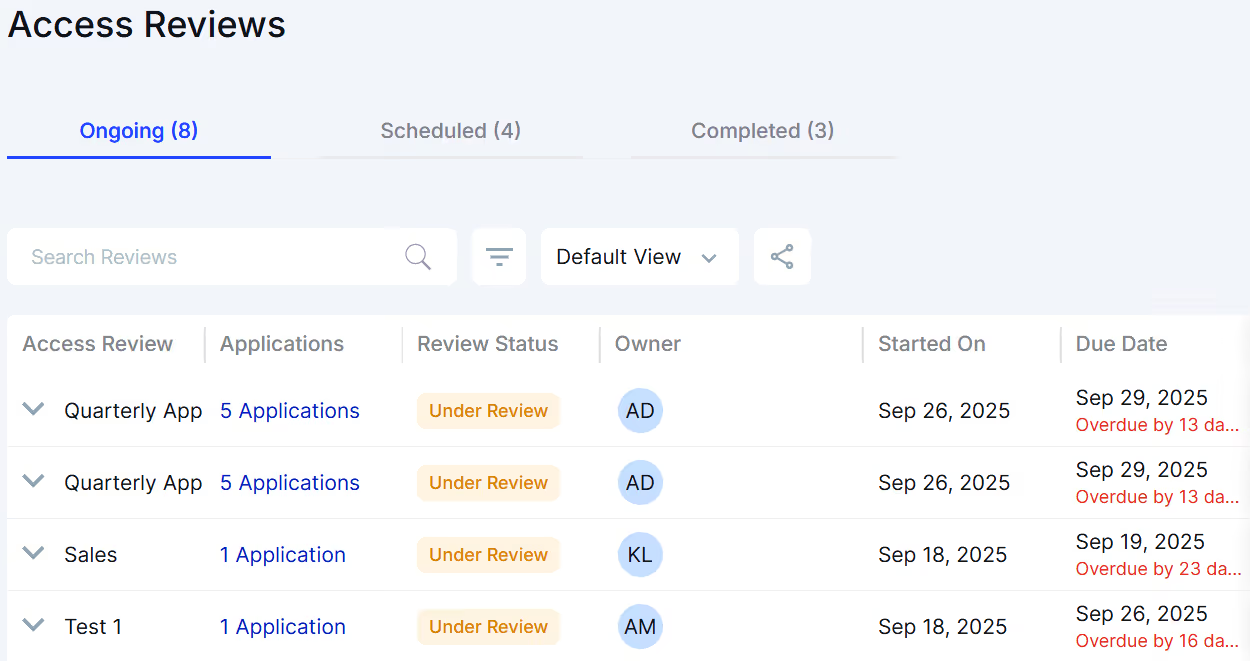
This keeps the process moving without reminders, email threads, or spreadsheets. Reviewers get the exact context they need, and admins gain a predictable, repeatable process.
3. Identifying risky, inactive, or unnecessary access
Not all users need a reviewer’s attention. CloudEagle highlights only the access that may need action. This includes:
- Ex-employees who still appear in Figma
- External users with more access than expected
- Editors who haven’t logged in for weeks
- Admins with privileges that don’t match their role
- Contractors whose engagement has ended
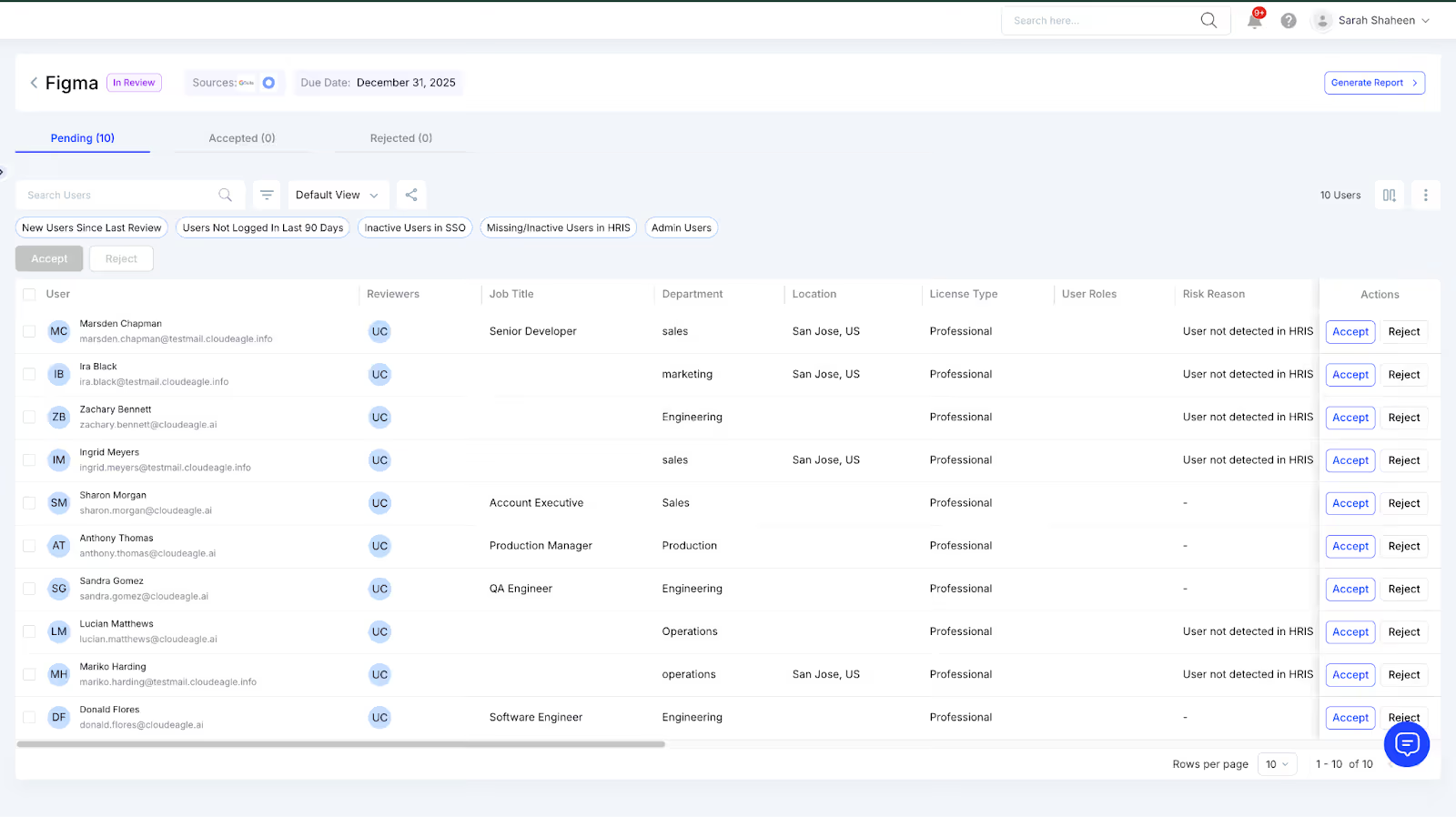
The platform filters out low-risk users and focuses reviewers on decisions that matter. This reduces review fatigue and improves accuracy.
4. Automated remediation with complete audit evidence
When reviewers reject or downgrade access, CloudEagle handles the follow-through. The system can:
- Remove or modify Figma access
- Downgrade editor licenses
- Offboard users across connected SaaS apps
- Record proof of each action
- Log evidence in JIRA or ITSM tools
This prevents decisions from stalling: one of the biggest failure points in traditional access reviews. CloudEagle ensures Figma permissions actually change when reviewers certify them.
5. Strengthening your JML posture with continuous monitoring
Instead of relying solely on quarterly reviews, CloudEagle monitors identity changes in real time. When someone joins, moves, or leaves the organization, the platform evaluates whether their Figma access still aligns with their role.
This reduces manual cleanup and closes the gaps that often remain unnoticed for months, especially in collaborative tools like Figma.
6. Audit-ready reports and evidence trails
CloudEagle automatically generates:
- PDF review summaries
- Historical certification records
- Detailed remediation logs
- Evidence for internal and external audits
This removes the need to reconstruct review data during compliance cycles and gives teams a reliable audit posture.
Many of the riskiest access issues surface during offboarding, which is why a structured checklist helps teams stay ahead of them.
5. Common Figma Access Issues to Watch Out For
Figma makes collaboration fast, but that same flexibility creates permission drift. As files move across teams and contributors change, access becomes harder to control.
These are the issues that typically appear during structured access reviews:
- External access sprawl: External collaborators often receive broad project- or team-level access instead of being added to specific files. When engagements end, these permissions usually remain, leaving non-employees with visibility into design assets that should be restricted.
- Residual access for former users: Users who leave the company may continue to own files or appear in sharing lists when Figma isn’t fully connected to HRIS or SCIM provisioning. These stale accounts disrupt workspace ownership and weaken governance.
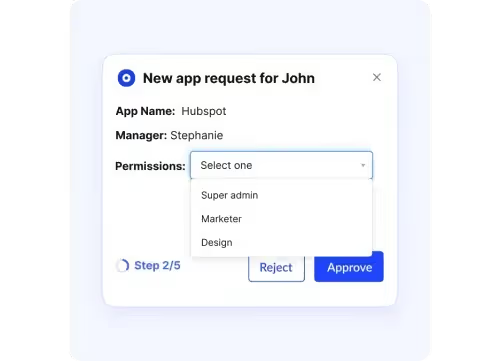
- Privilege accumulation: Admins, library publishers, and editors gradually collect permissions as they support different teams. When roles shift, these elevated rights are rarely removed, resulting in excessive privilege that no longer matches job responsibilities.
- Broad link sharing: Teams frequently use “anyone with the link” settings for prototypes or file reviews. These links are seldom revoked, granting ongoing access to individuals who should no longer see the content and bypassing identity-based controls.
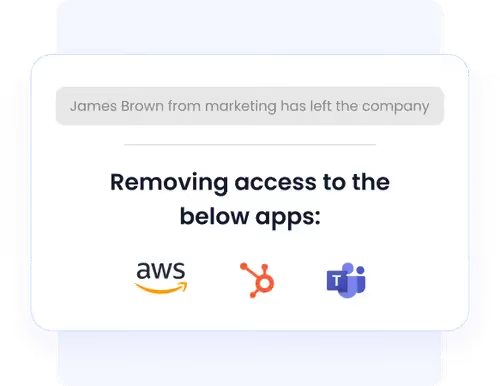
- Unowned or abandoned files: Files lose owners when users change roles or leave. Without a clear owner, permissions aren’t updated, reviews stall, and access decisions become difficult to verify during audits.
- Inactive users retaining access: Dormant accounts often retain editor seats or workspace-level permissions. These users inflate license costs and retain rights that don’t align with actual usage.
- Unmanaged access outside SSO: When users sign up with personal emails or separate Figma spaces, their accounts fall outside identity governance. These environments don’t inherit corporate policies and remain invisible during access reviews.
6. Quarterly Checklist for User Access Reviews
Quarterly access reviews help you catch permission drift, remove outdated access, and reduce the risk of sensitive design files being exposed.
Most teams skip steps or rely on ad-hoc checks, which leaves gaps. This checklist gives you a complete, structured workflow to run consistent, audit-ready reviews every quarter.
7. A Smarter Way to Review Figma Access
Tracking permissions, sharing settings, and user activity gives you tighter control over your Figma environment and reduces avoidable access risks. You now know exactly what to review each quarter.
CloudEagle keeps this workflow effortless by automating user access reviews, flagging risky accounts, and generating audit-ready evidence without manual chasing. If you want continuous access assurance instead of quarterly scrambling, start with CloudEagle.
Book a demo or start a free trial today.


.avif)


.avif)
.avif)




.png)







.avif)
.avif)
.avif)


